In SharePoint online when you are working with Lists it is easy to control what site columns show in the new and edit forms and which ones do not. To do this on a list you open the New Form by clicking on the New button. On the New form there is an icon in the top right.

By clicking on the Edit Columns button you will see the list of columns.
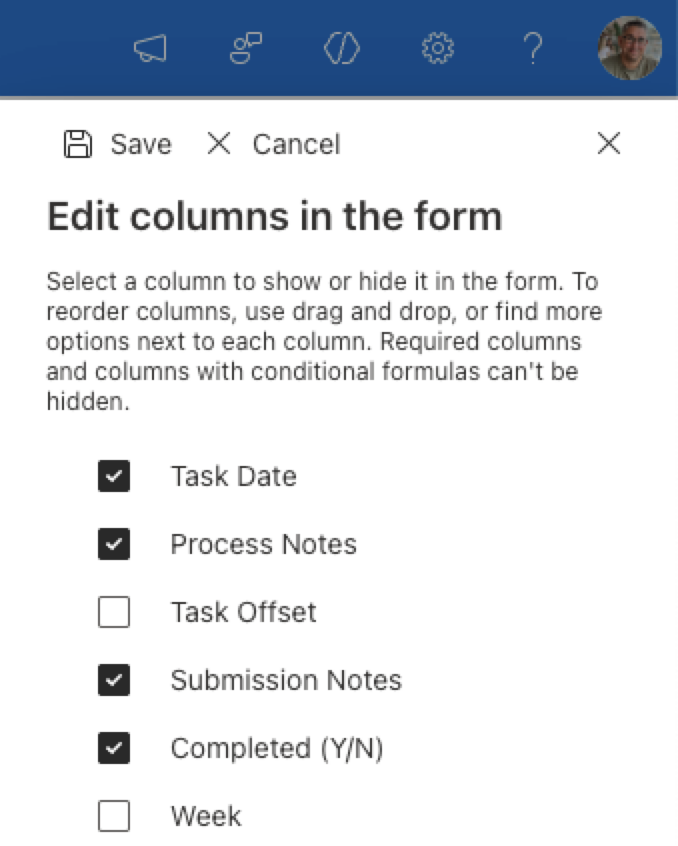
By clicking on the check box you can control if that site column shows up on the form or not.
As I mentioned this works great for Lists but what about Libraries. I recently was using the site pages library to create a custom content type for a page. I wanted to not show a specific on the content type however there is no New form when it comes to documents.
To find the list of site columns to show or hide on a document library first you need to have a document in that library.
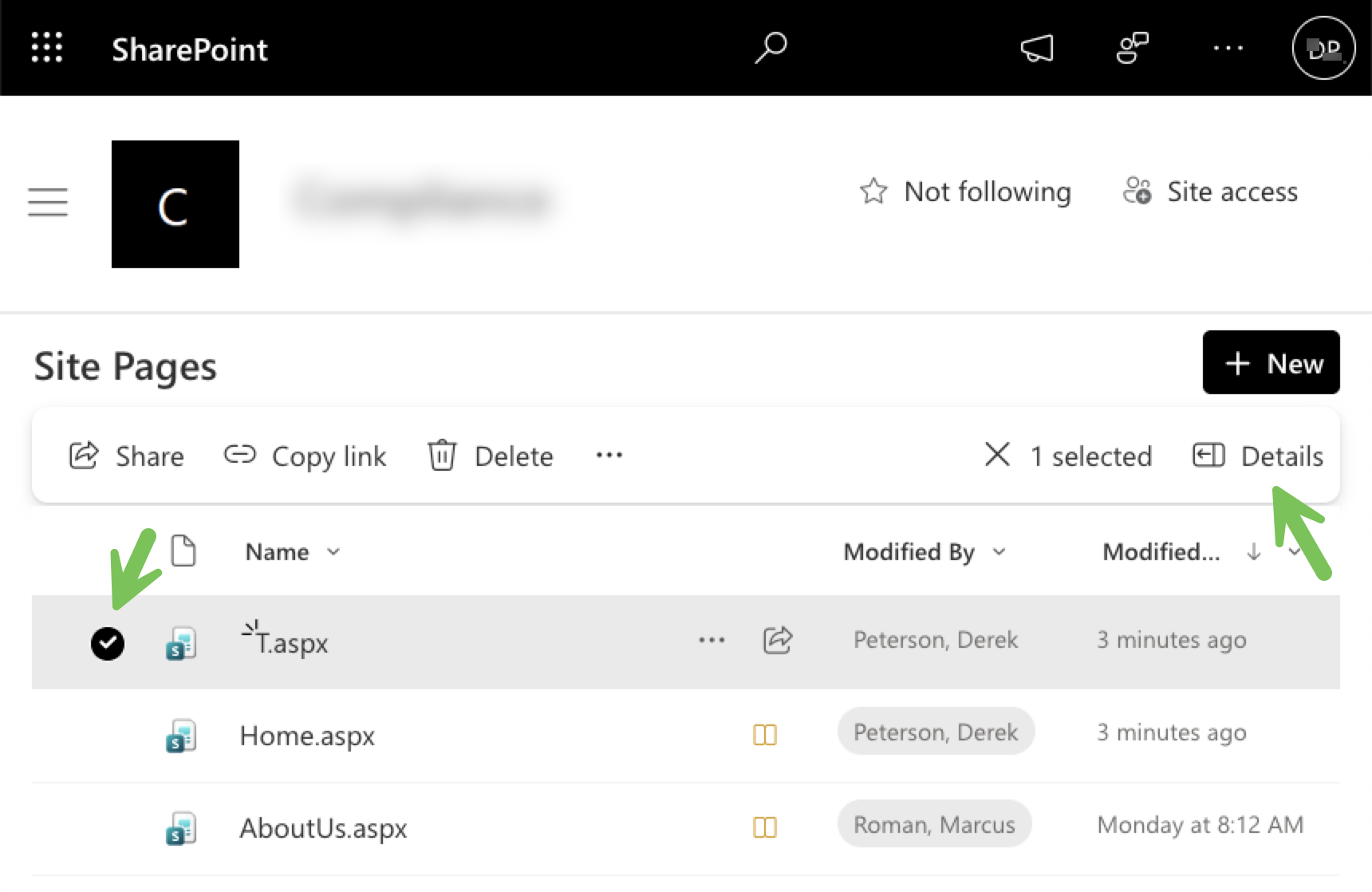
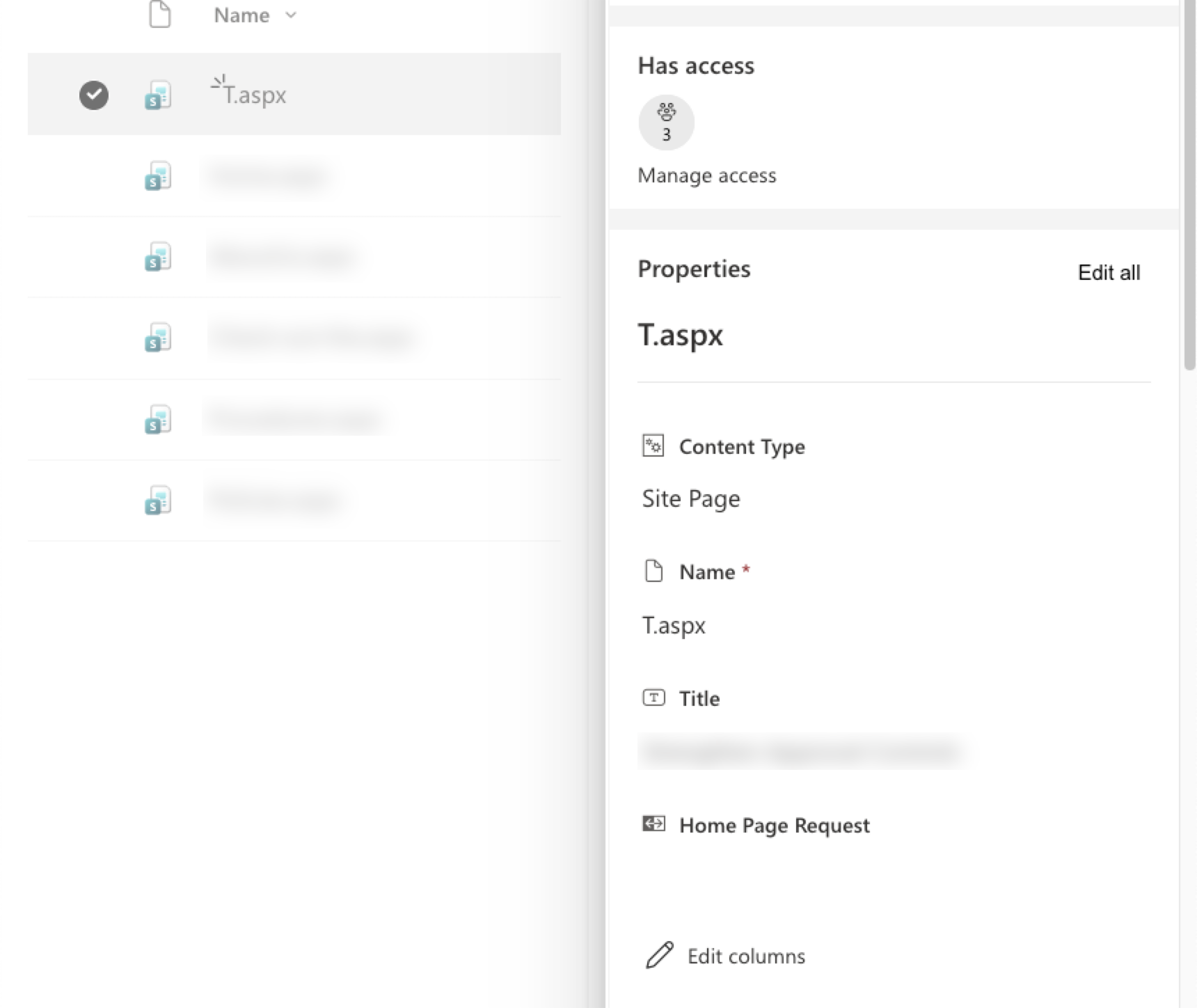
Select any document in the library and then click on the details panel. This will show the properties associated with that document. At the bottom of the properties click on Edit columns.
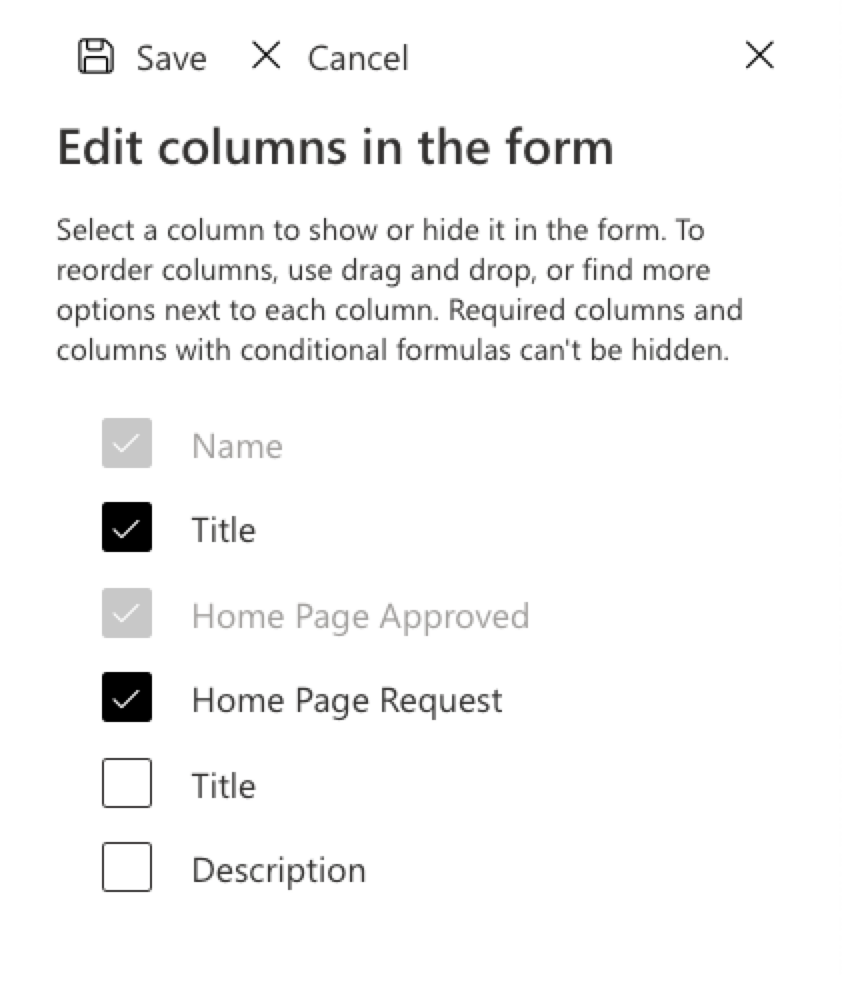
This will expose the list of site columns associated with the library. You can choose what to show or hide and also create conditional visibility for different fields.
I hope this helps!
 When Pigs Fly